
// VDS 7 “Renaissance”
Example
A full Visual DialogScript example: WinTouch, a drag-and-drop utility to change file dates and times, with commented code.
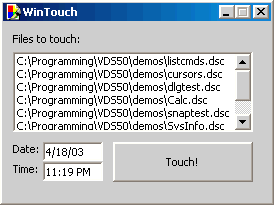
Here is an example of what can be done using Visual DialogScript. The dialog shown below is a Windows 'touch' utility which sets the date and time stamps of a set of files to a value you specify.
WinTouch, the utility
The program uses drag and drop, so you simply drag the files you want to touch to the list box, enter the date and time, and press Touch.
The code
TITLE WinTouch
DIALOG CREATE,WinTouch,-1,0,268,180,DRAGDROP,SAVEPOS
DIALOG ADD,TEXT,TEXT1,10,10,,,Files to touch:
DIALOG ADD,LIST,FileList,30,10,240,80
DIALOG ADD,TEXT,TEXT2,120,10,,,Date:
DIALOG ADD,TEXT,TEXT3,140,10,,,Time:
DIALOG ADD,EDIT,Date,120,40,60,,@datetime(ddddd)
DIALOG ADD,EDIT,Time,140,40,60,,@datetime(t)
DIALOG ADD,BUTTON,Touch,120,110,140,40,Touch!
DIALOG SHOW
:again
dialog disable,Touch
:evloop
wait event
goto @event()
:TouchBUTTON
list seek,FileList,0
repeat
%F = @item(FileList)
file setdate,%F,@dlgtext(time),@dlgtext(date)
list delete,FileList
until @zero(@count(FileList))
goto again
:DragDrop
list DROPFILES,FileList
dialog enable,Touch
goto evloop
:CLOSE
exit
How it works
First of all, it's worth pointing out that if you use the Dialog Wizard to generate the program after designing the dialog using the Dialog Editor, you actually need to write only ten lines of code out of the 29 total of this program.
The title command simply sets the title for the application. The dialog create command defines the dialog itself, and is created using the Dialog Editor. The only modification is to insert the two @datetime function calls in the two EDIT dialog elements, which set the two edit fields to the initial date and time. The DRAGDROP and SAVEPOS parameters say that we want the program to respond to drag-and-drop operations, and we want the dialog to remember the position we last placed it at on the screen.
The dialog disable command disables the Touch button, so that it can't be pressed if there are no files in the list. The lines :again and :evloop are labels. The two lines after :evloop wait for something to happen (called an event) and then go to a label with a name corresponding to the type of the event. There are three possible types of event: TouchBUTTON, which occurs when the Touch button is pressed; DRAGDROP, which occurs when a drag-and-drop operation takes place; and CLOSE, which occurs when the user closes the dialog. DialogScript is not case sensitive about its treatment of labels. All the labels and skeleton event-handling code are generated by the Dialog Wizard, if you use it, so your own contribution is just to insert some code after the event labels to define what the program is supposed to do.
The DRAGDROP event is simply taken care of with the command list DROPFILES,FileList, which adds the names of the dragged-and-dropped files to the list box. The program then returns to :evloop to await the next event. The six lines following :TouchBUTTON remove the filenames from the list box, one at a time, and use the file setdate command to change the date and time to that specified in the two edit fields. Once all have been processed, the program loops back to :again. The default action for the CLOSE event is to exit the program.
Running scripts
The Personal versions of Visual DialogScript are designed for writing scripts which will be run on the same PC. Using Windows' built-in file association mechanism, when you double-click on a script's icon the script is run. A tool is provided which allows you to create Start Menu icons for the scripts you create.
The Standard and Professional versions can create executable files which can be distributed with a run-time engine so that they can be run on PCs that don't have a licensed copy of Visual DialogScript installed. No royalty payments are needed to distribute the run-time. This makes Visual DialogScript the most cost-effective tool where script programs have to be distributed across an organisation: most Windows batch languages have to be licensed on a per-system basis.
Any other questions about the functionality of Visual DialogScript? Visit the Support page.
Build it with VDS 7.
The full IDE + language. Windows & Linux · 32/64-bit · Unicode.